Da Vinci Eye: AR Art Projector
- 4.5
- Rating
- 100.00K
- Installs
- Free
- Price

 Analysis by App-foxy
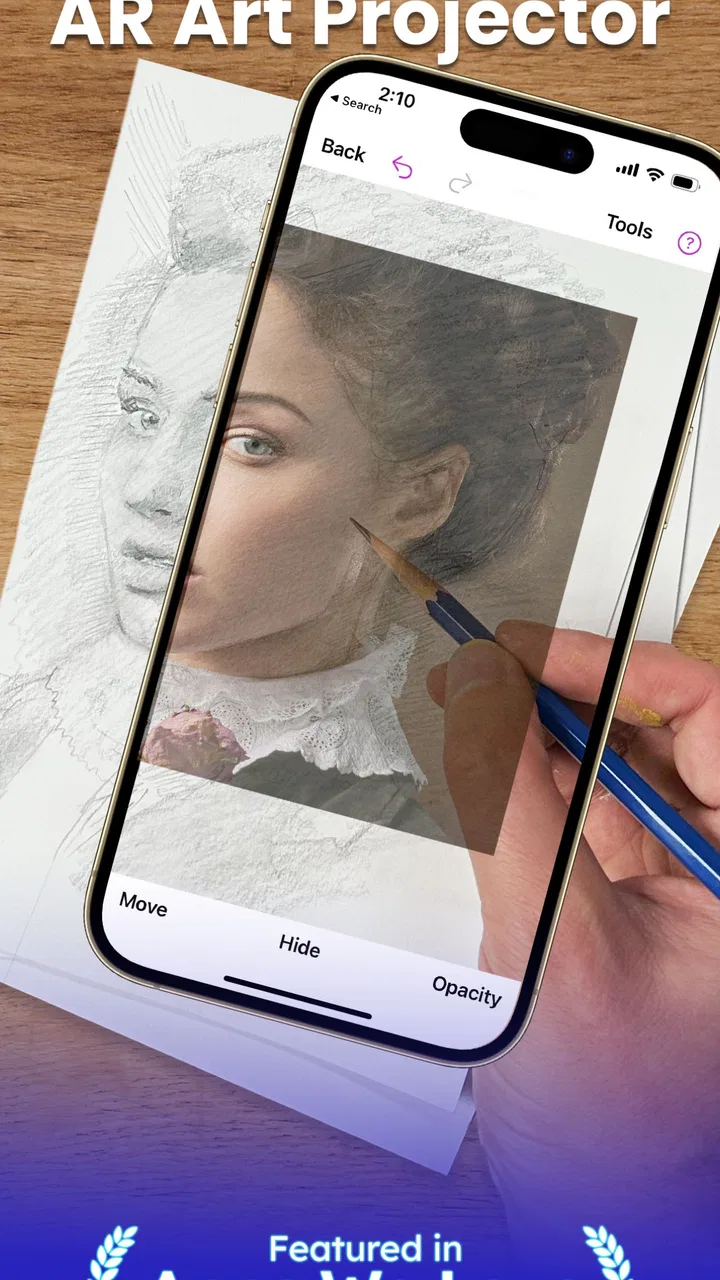
I approached Da Vinci Eye: AR Art Projector as a practical drawing aid rather than a magic shortcut. Its basic idea is simple: use augmented reality to help place an image on a real surface, then use that visual guide while you draw. That makes it especially interesting for people who can recognize shapes and tones but struggle to transfer them accurately onto paper, canvas, or another physical surface.
This is a free Art & Design app from Da Vinci Eye LLC, with optional in-app purchases ranging from $7.99 to $29.99 per item. It is aimed at Teen users, runs on operating systems version 11 or later, and the current version is 4.1.5. The app has built a 4.6 average from around 368 ratings, with more than 50 thousand installs, so it is not an obscure experiment. Still, those numbers do not answer the question that matters most: whether an AR drawing guide fits the way you personally like to work.
What I considered before recommending it
My first decision criterion was control. An app like this should help me position and understand a reference without taking over the creative part. If it merely produces a tracing exercise with no room for interpretation, it may be useful for beginners but limiting for someone who wants to develop observation skills. If it is too loose, however, it becomes little more than a reference image on a screen.
You May Also Like

 Blood Strike: 2.5 Anniversary
Blood Strike’s Loadouts Turn Every Drop Into a Tactical Gamble
A close look at Blood Strike’s custom loadouts: how fast access to signature weapons reshapes its battle royale rhythm, rewards preparation, and narrows the gap between fights.

 Pandora - Music & Podcasts
Pandora’s Music Is Easy to Start, but Harder to Recover
Pandora’s strength is its low-effort path from a seed to a station. Its weak spot is how much confidence it asks you to place in connection, setup, and quiet recovery.

 8 Ball Pool
 Is Built on Rivalries, Rematches, and Routine
A close look at the rivalries, rematches, shared routines, and unanswered safety questions that turn a quick pool match into a persistent mobile community.

 Samsung Music
’s Quiet Strength Is Playing What You Already Own
Its reach comes less from spectacle than from dependable access to a personal library. That simplicity is both the app’s strongest retention engine and its ceiling.

 AccuWeather: Weather Radar
AccuWeather Review: A Quick, Clear Forecast for Everyday Decisions
For everyday plans, the best forecast is the one you can understand quickly. AccuWeather makes rain timing, radar, and local conditions easy to act on, with a few trade-offs.

 Hill Climb Racing
Why Hill Climb Racing Still Turns Crashes Into One More Run
A tiny car, a bumpy hill and one more upgrade: Hill Climb Racing keeps resurfacing because its simple chaos makes every near-miss feel personal.
More From Our News Desk



The second criterion was setup friction. Drawing apps often look convenient until the user has to prop up a phone, keep a surface still, adjust the viewing angle, and maintain the same position throughout a session. AR tools are particularly sensitive to movement because the digital guide must remain aligned with the physical drawing area. I therefore judged this app by how well its central idea supports a repeatable workflow, not just by how impressive the first demonstration feels.
The third question was what kind of artist would benefit. A complete beginner may need help with proportion, placement, and confidence. A hobbyist may want to turn a photograph into a physical drawing without spending hours constructing a grid. A more experienced artist may use the guide for a quick layout and then deliberately move away from it. Those are different needs, and the app makes more sense for some of them than for others.
Finally, I considered the alternatives. A traditional grid method is slower to prepare but teaches measurement and can work with almost any reference. A standard drawing app is better for undoing mistakes and experimenting with color. A physical projector can offer a more stable large-scale setup, while freehand practice develops visual judgment in a way no overlay can fully replace. The right choice depends on whether speed, portability, learning, or physical control is your priority.
The first session is about alignment, not drawing
The most important practical lesson is to treat the initial setup as part of the artwork. I would not start by choosing a complicated portrait and immediately trying to copy tiny details. A simple object with a clear outline is a better test. It lets you see whether the image stays where you expect it, whether the surface is comfortable, and whether your phone position is stable enough for the task.
Once the guide is in place, the temptation is to chase every visible line. I found that a better approach is to identify the largest shapes first. Lightly mark the outside contour, major divisions, and important angles before worrying about texture or shading. This prevents the common tracing mistake of producing accurate small details inside an inaccurate overall form.
That workflow is one of the app’s strongest educational possibilities. It can reduce the intimidating blank page, but it does not automatically make the final drawing convincing. You still have to decide which lines deserve emphasis, how dark a shadow should be, and which details can be simplified. In other words, the AR guide helps with placement; it does not replace judgment.
Where the AR approach is genuinely useful
The clearest advantage is proportion. When I look at a reference beside a blank page, my brain tends to correct what it expects to see. A head becomes slightly too wide, a vase becomes too tall, or a tilted object quietly straightens itself. Keeping the reference visually connected to the drawing surface makes those errors easier to catch early.
This is also useful for transferring an image to a surface that is not a standard sketchbook page. Someone decorating a canvas, preparing a handmade card, or planning a wall-sized composition may appreciate having the reference appear in relation to the real working area. The app’s value grows when the problem is not “how do I draw?” but “how do I place this particular image accurately here?”
Another less obvious use is planning before committing to expensive materials. I would use a rough pencil layer to test the composition, then make decisions about line weight, paint, or color afterward. That can save time when working on a canvas or other surface where erasing is awkward. The app is most helpful as a layout assistant, not as a substitute for the later stages of a finished piece.
It can also help a parent or teacher demonstrate the relationship between reference and result. Instead of explaining proportion only in abstract terms, the learner can see how a curve or angle corresponds to the source. That said, I would encourage the learner to repeat the subject later without the overlay. Otherwise, the tool may become a crutch rather than a bridge toward independent drawing.
Three workflow tips that make a noticeable difference
First, use a two-pass drawing method. In the first pass, make extremely light marks for the outer boundary and the largest internal shapes. In the second, check the drawing against the reference and strengthen only the lines that communicate form. This is more reliable than trying to finish each area as you reach it, because local accuracy can hide a global mistake.
Second, prepare the physical setup before loading a demanding reference. A loose phone position, a slippery sheet, or an unstable support can make the overlay feel inaccurate even when the problem is the workspace. I would place the drawing surface first, decide where my hand will rest, and avoid moving either the surface or the viewing device once the composition is established.
Third, use the app to inspect relationships rather than blindly follow every edge. For a portrait, compare the spacing between major features. For an object, compare the angle of the top plane with the angle of the base. For a landscape, establish the horizon and large masses before attempting branches, windows, or texture. This turns the app from a tracing aid into a visual measuring tool.
Where this app wins against ordinary references
Compared with placing a reference photo beside a sketchbook, the AR method offers a more direct connection between source and surface. I do not have to keep shifting my gaze from one location to another and mentally scale the image. That can be particularly helpful when I am working quickly or when the physical drawing is larger than the screen image.
Compared with a grid, the app is faster for users who do not enjoy constructing guide lines. A grid remains excellent for careful transfer because it breaks the image into measurable sections, and it does not depend on maintaining an aligned viewing setup. However, the grid adds visible structure that must later be erased or worked around. The AR approach keeps the physical surface cleaner during the early stage.
Compared with a conventional digital drawing application, the main difference is the destination. Digital tools are better when I want unlimited revisions, layers, filters, and a polished screen-based result. This app is aimed at the moment when I want to draw with real materials. If the finished piece is supposed to be on paper or canvas, the physical workflow feels more direct.
Compared with a separate physical projector, the phone-based approach is easier to consider for casual projects because it does not require another dedicated piece of equipment. The trade-off is that a phone-based AR setup may feel less natural for large work or long sessions. I would choose a physical projection arrangement when scale, stability, and extended studio use matter more than portability.
Where another category may fit better
I would not choose this app as my main tool for learning freehand drawing from the ground up. It can show me where a line belongs, but it does not force me to estimate that line independently. Someone focused on observational training may get more long-term value from alternating between guided studies and completely unguided sketches.
I would also look elsewhere for a fully digital illustration workflow. The appeal here is the bridge from a digital reference to a physical drawing surface. If my goal were to paint, edit, animate, or refine an image entirely on a tablet, a dedicated digital art application would offer a more appropriate set of controls.
Large artwork is another important exception. A phone-centered AR guide may be convenient for a notebook, card, or modest canvas, but a mural or very large composition introduces distance, stability, and viewing challenges. In that situation, a physical projector, a measured grid, or a carefully planned transfer method may be more dependable.
There is also a creative trade-off. Following an overlay too closely can produce a technically aligned drawing that still feels flat. Reference images contain visual information that needs interpretation: edges disappear in shadow, some lines are more important than others, and a realistic result depends on values as well as contours. If I want the app to make every artistic decision for me, I will probably be disappointed.
What the free entry point really means
The app is free to install, which makes it easy to test the basic concept before deciding whether it belongs in your routine. That matters because AR drawing is personal. Some people immediately understand the relationship between the projected guide and the physical surface; others find the setup distracting or prefer a reference beside the page.
Optional purchases sit between $7.99 and $29.99 per item. I would approach those purchases as a commitment to a workflow, not as a requirement for becoming better at drawing. Before spending money, I would complete several different kinds of studies: a simple object, a face or figure, and a composition with larger shapes. If the guide consistently saves time and improves placement, the cost may make sense for your habits. If you only use it once for a novelty tracing session, it may not.
The cost of switching is not only financial. Moving from a grid means giving up some measurable structure. Moving from a digital art app means accepting physical materials and fewer easy revisions. Moving from freehand practice means accepting that faster results may provide less independent training. I think the best way to avoid regret is to decide what problem you are paying to solve: proportion, speed, confidence, or the ability to transfer a particular image.
A realistic everyday scenario
Imagine I want to make a handmade birthday card using a photograph of a family pet. I could print the photo, draw a grid over it, and recreate the image square by square. That method would work, but it would take preparation and might leave me with guide marks on a small surface. With the AR workflow, I can first establish the pet’s overall silhouette, place the eyes and nose carefully, and then simplify the fur into a few expressive marks.
The important part is that I would not try to trace every strand of fur. The app can help me locate the features that make the subject recognizable, while my own choices determine the style of the card. After the light construction is complete, I can put the device aside and finish the line work or color without treating the overlay as a permanent instruction.
That scenario shows both the strength and the boundary of the tool. It can make a personal project feel achievable and reduce the fear of ruining the first attempt. It cannot decide whether the pet should look realistic, playful, graphic, or loose. The final character still comes from the person holding the pencil or brush.
Who should use it, and who should skip it
I recommend trying it if you are a beginner who wants a gentle entry into drawing from references, a hobbyist transferring photos to physical materials, or a maker who needs help with composition before painting. It is also a sensible option for people who learn visually and prefer seeing the reference connected to the surface rather than studying a separate screen.
I would be more cautious if you dislike device-based workflows while making art. The phone can become a second object to manage, and that may interrupt the quiet concentration many people want from drawing. Artists who already have a reliable grid or projection method may also find that changing systems offers little benefit unless portability is important.
Students should use it with a clear purpose. For a one-off finished illustration, it can be practical. For building observational ability, I would use it only for the construction stage, then repeat the same subject without assistance. That small habit changes the app from a shortcut into a training aid.
My recommendation after weighing the trade-offs
Da Vinci Eye LLC has made a focused Art & Design app for a specific problem: transferring visual information to a real drawing surface with the help of AR. In my view, that focus is its advantage. It is more useful than a generic reference viewer when proportion and placement are the main obstacles, and it is more immediate than building a traditional grid for every small project.
My recommendation is positive for beginners and practical hobbyists, especially those who want to draw recognizable subjects on paper, canvas, or handmade projects without spending the first hour constructing measurements. I would start with a simple image, use light marks, and treat the overlay as temporary scaffolding rather than a command to copy everything.
I would skip it if your priority is advanced digital illustration, very large studio work, or pure freehand training. In those cases, a dedicated digital art tool, a physical projector, a grid, or regular observational practice may serve you better. For everyone else, the free starting point makes experimentation reasonable, while the optional purchases deserve a decision based on repeated use rather than excitement after one successful tracing.
Overall, I see this as a practical bridge between looking at an image and drawing it in the real world. The best results come when the app handles placement and I handle interpretation. That balance is what makes it worth trying: it lowers the barrier to starting without pretending that artistic decisions can be automated.
FAQs for Da Vinci Eye: AR Art Projector
01What is Da Vinci Eye: AR Art Projector used for?
Da Vinci Eye: AR Art Projector is an innovative app designed for artists, both beginners and professionals, looking to enhance their drawing and painting skills. By using augmented reality, it projects images onto your drawing surface, allowing you to trace and learn techniques with precision. The app helps in improving hand-eye coordination and artistic accuracy.
02How does the augmented reality feature work in Da Vinci Eye?
The augmented reality feature in Da Vinci Eye uses your device's camera to overlay a chosen image onto your drawing surface. You simply select an image from your gallery or take a new photo, and the app superimposes it onto your paper or canvas. This enables you to trace the image precisely, aiding in the development of your artistic skills.
03Is Da Vinci Eye suitable for beginners in art?
Yes, Da Vinci Eye is highly suitable for beginners. It provides a structured way to learn drawing by allowing users to follow outlines and details exactly as they appear. The app offers tutorials and guides, making it easier for newcomers to understand and apply various artistic techniques, thus building confidence and skill gradually.
04Does Da Vinci Eye require a subscription or one-time purchase?
Da Vinci Eye offers both a free version with basic features and a premium version accessible through a subscription. The premium version unlocks advanced features, such as more image filters, higher resolution, and exclusive tutorials. Users can choose the option that best fits their needs, whether for casual use or more intensive learning.
05Can Da Vinci Eye be used on both Android and iOS devices?
Yes, Da Vinci Eye is available for download on both Android and iOS platforms. The app is designed to function seamlessly across different devices, ensuring users have access to its full range of features regardless of their operating system. It is advisable to check the app store for compatibility with your specific device model.
Pros
- Easy to use for beginners.
- Accurate drawing guides.
- Supports multiple art styles.
- Enhances creativity flow.
- Great for practice and learning.
Cons
- Requires steady hand for precision.
- Limited free features.
- Performance varies on older devices.
- Battery drains quickly with AR use.
- Subscription model can be costly.

Da Vinci Eye: AR Art Projector
Gallery